
[vc_row][vc_column][spacing desktop_height=”20″][/vc_column][/vc_row][vc_row][vc_column][vc_column_text css=””]Our live webinars are hosted on CERIC’s Learning Hub. Visit our FAQ for more information. [vc_row][vc_column][spacing desktop_height=”20″][/vc_column][/vc_row][vc_row][vc_column][vc_column_text css=””]CERIC webinars are hosted on Zoom. What does this mean for you?[/vc_column_text][advlist content_background_color=”#ffffff” content_padding=”0px 10px 0px 0px” icon_type=”typicons” icon_color=”#ff683a” icon_font_size=”40px” content_left_padding=”40″ icon_typicons=”typcn typcn-input-checked”]A user-friendly interface[/advlist][advlist content_background_color=”#ffffff” content_padding=”0px 10px 0px 0px” icon_type=”typicons” icon_color=”#ff683a” icon_font_size=”40px” content_left_padding=”40″ icon_typicons=”typcn typcn-input-checked”]The ability to interact with presenters and attendees through advanced engagement options[/advlist][vc_column_text]
Below are common questions or information we recommend you review:
[/vc_column_text][/vc_column][/vc_row][vc_row][vc_column][vc_toggle title=”How to complete your registration” css=””]Registering for our webinars involves two straightforward steps. Firstly, complete the registration on Eventbrite. Once confirmed, expect a confirmation email from Eventbrite. Subsequently, you will receive one email from Zoom containing your session-specific Zoom link. It’s important not to share your Zoom link, as only one device connection is allowed per registration.[/vc_toggle][vc_toggle title=”Group registration procedure” css=””]The group rate is only available when a minimum of 5 people from the same organization register for the same webinar series. The person purchasing the group ticket must provide each individual’s information.
IMPORTANT: Please be aware that for group registrations, each individual will receive two emails. Kindly inform your staff members to ignore the email sent from EventBrite and ONLY consider the email(s) received from Zoom with their Zoom link(s).[/vc_toggle][vc_toggle title=”Certificate of LIVE participation procedure” css=””]Please note that individual certificates of attendance are ONLY provided to registered participants who attend the webinar LIVE. If you watch the webinar from its recording, you won’t receive a certificate of live participation.
Within 24 hours following the live webinar, participants who attended the webinar live will receive a certificate of attendance. A certificate of attendance will be sent from certs@gutenbergcerts.com. Make sure to add this address to your contact list so it won’t fall under your junk folder.[/vc_toggle][vc_toggle title=”How to access materials and recordings” css=””]Materials and recordings will be sent to you within 48 hours of each webinar. Please be aware that the process may take longer if subtitles are being added to the recordings.[/vc_toggle][spacing desktop_height=”5″ mobile_height=”2″ smobile_height=”1″][/vc_column][/vc_row][vc_row][vc_column][vc_column_text]
Do you experience technical issues, or do you have concerns? Check this:
[/vc_column_text][/vc_column][/vc_row][vc_row][vc_column][vc_toggle title=”I registered my colleagues in a group rate, but they are prompted to log in to Eventbrite to claim their tickets” css=””]Please be aware that for group registrations, each individual will receive two emails. Kindly inform your staff members to IGNORE the email sent from EventBrite and ONLY consider the email(s) received from Zoom containing their Zoom link(s) to their session(s).[/vc_toggle][vc_toggle title=”I didn’t receive my certificate of attendance” css=””]Please note that individual certificates of attendance will ONLY be provided to registered participants who attend the webinar LIVE. If you watch the webinar from its recording, you won’t receive a certificate of live participation. Individual certificates of attendance will be provided for each webinar of the series within 24 hours following the live webinar. A certificate of attendance will be sent from certs@gutenbergcerts.com. Add this address to your contact list so it won’t end up in your junk folder. If you still cannot locate your certificate of attendance after checking your junk mail, please email us at learning@ceric.ca with the webinar name and date you attended.[/vc_toggle][/vc_column][/vc_row][vc_row disable_element=”yes”][vc_column][vc_column_text]
1. What’s new with CERIC webinars?
In response to popular request, CERIC PAID webinars are now moved to the Zoom Event platform! What does this change mean for you?
- A user-friendly interface
- The ability to better interact with presenters and attendees through new engagement options
- Access to a conference lobby before and after the sessions with the ability to discuss content with peers
[/vc_column_text][spacing desktop_height=”40″][/vc_column][/vc_row][vc_row disable_element=”yes”][vc_column][vc_column_text]
2. What are the changes you can expect in both the registration process and live participation?
As with any changes, you may find your registration or participation process a little different at first. Be sure to register in advance so we can best assist you with this upgraded experience! What changes can you expect?[/vc_column_text][spacing desktop_height=”20″][/vc_column][/vc_row][vc_row disable_element=”yes”][vc_column][accordions]
CERIC Free webinars are available to all countries (as long as the country is not restricted from access by Zoom Events). Unfortunately, our paid webinars are limited to the countries/regions Zoom Events are offered. If you are having trouble registering, please check if your country is on this list.
Once you register, check your zoom account email for confirmation and mark the webinar(s) in your calendar using this calendar item. You’ll be prompted to add each session in the webinar series to your calendar. We recommend you turn on reminders so you don’t miss the webinars! Note: you can simply drag the calendar item to your Outlook agenda or Gmail agenda and edit the preferred reminder time.
Note: Confirmation and reminder emails will be sent from Zoom using the following email address: noreply-zoomevents@zoom.us. Make sure you add this email address to your contact list, so it won’t go to your junk mail folder.
Once you register, check your Zoom account email for confirmation and mark the webinar(s) in your calendar using this calendar item.
Note: Confirmation will be sent from Zoom using the following email address: noreply-zoomevents@zoom.us. Make sure you add this email address to your contact list, so it won’t go to your junk folder.
Previously, one person could register several team members on their behalf using the same registration page and make one single payment. It is not possible anymore. From now on, each group member will need to register and pay independently. Important: Each group member must register with their email address associated with their Zoom account, or each would have to create a new account if they don’t have one. You must get invoiced if your organization wants to make one single payment. Contact us at webinars@ceric.ca, and we’ll inform you of the invoice procedure. Payment Policy: Please note that payment must be received within 30 days to complete your registration.
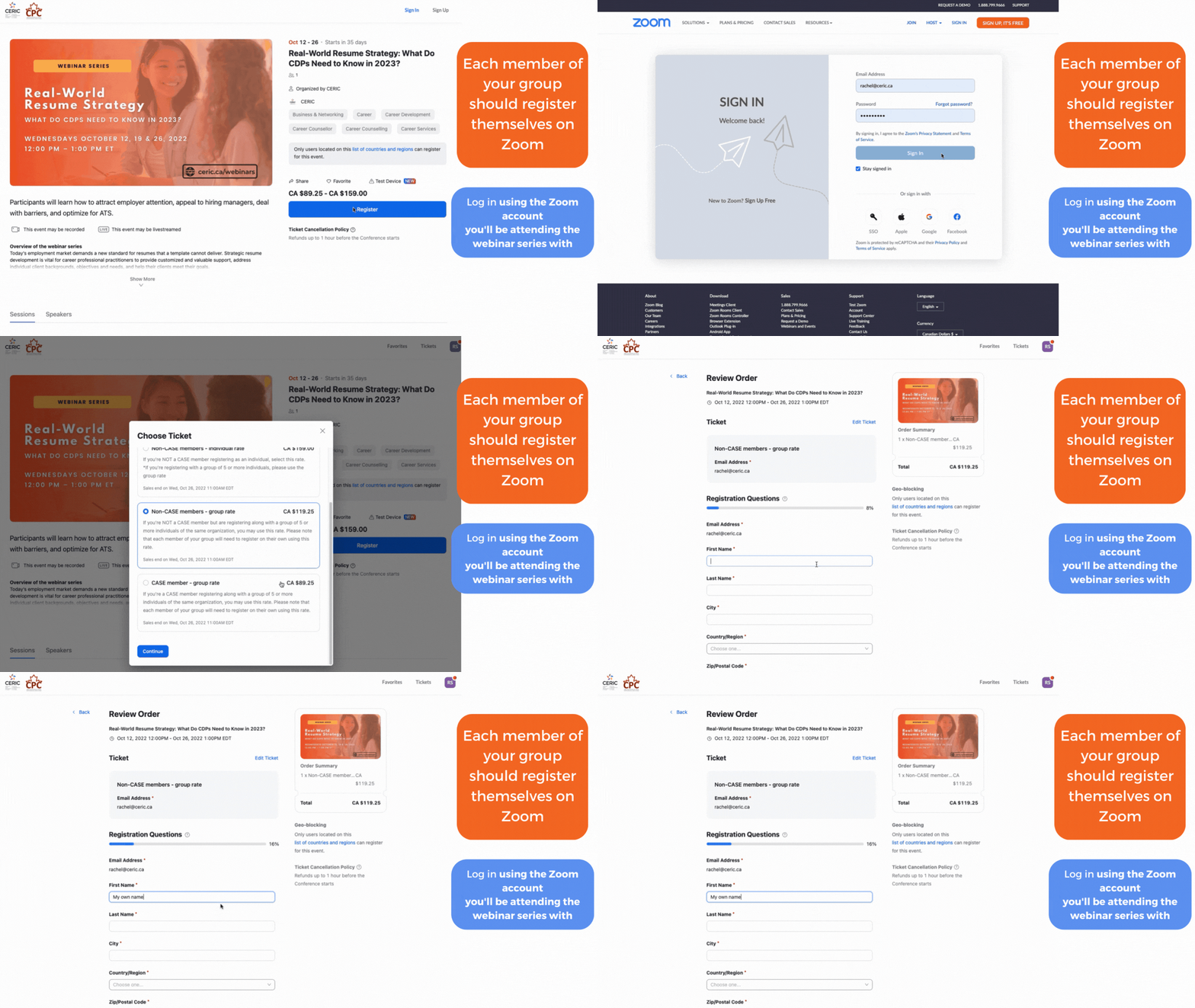
If you see this error message, switch to the Zoom account you used to register for the webinar(s) instead and try again.
Once you arrive at the Zoom event page, navigate to the upcoming session. If you arrive before the starting date and time of the session, you will see a countdown indicating to you when the session will start. When the session is in progress, an “in progress” bar should be illuminated. Select the “Join” button.
You may experience this waiting screen before you’re prompted to join. Please wait for the webinar to start if that is the case. Once the event has started, you will enter the waiting room, pending the presenters and organizer moving you to the main room.
- Review information about the webinar series
- See & interact with who’s registered
- Ask questions or discuss concepts before or after the session
- Access materials for the webinar before/after each session
Access to the lobby will be deactivated a month after the webinars series is done.
[/vc_column_text][/vc_column][vc_column offset=”vc_hidden-lg vc_hidden-md vc_hidden-sm vc_hidden-xs”][vc_row_inner][vc_column_inner][vc_toggle title=”A new registration process using your Zoom profile”]You’ll be prompted to sign in using your zoom account. When registering, you must log in with the zoom account you’ll use on the day of the webinar. Access to the webinar and confirmation details will only go to the e-mail you’re using at this stage. If needed, you can easily create a new Zoom account for free.
Once you register, check your zoom account e-mail for confirmation and mark the webinar(s) in your calendar using the attached calendar item. You’ll be prompted to add each session in the webinar series to your calendar. We recommend you turn on reminders so you don’t miss the webinars! Note: you can simply drag the calendar item to your Outlook agenda or Gmail agenda and edit the preferred time to be reminded of.
Note: Confirmation and reminder emails will be sent from Zoom using the following email address: noreply-zoomevents@zoom.us make sure you add this email address to your contact list, so it won’t go to your junk mail folder.[/vc_toggle][vc_toggle title=”A new group registration procedure”]Previously, one person could register several team members on the same registration page and pay the appropriate amount. From now on, each group’s member will need to register on their own. Please note that the group rate is only available when 5 people or more from the same organization register for the same webinar series.[/vc_toggle][vc_toggle title=”A new way to receive and set up your reminders so you don’t miss the events!”]Once you register, check your zoom account e-mail for confirmation and mark the webinar(s) in your calendar using the attached calendar item. You’ll be prompted to add each session in the webinar series to your calendar. We recommend you turn on reminders so you don’t miss the webinars! Note: you can simply drag the calendar item to your Outlook agenda or Gmail agenda and edit the preferred time to be reminded of.[/vc_toggle][vc_toggle title=”More options to participate”]To make the webinars more engaging, you will have the possibility to turn on/off your webcam. Please note that your mic will be turned off upon your entry and the options for activating it will be limited based on presenter preferences and plans.[/vc_toggle][vc_toggle title=”A new way to join the live session”]Open the webinar session you’ve saved in your calendar and open the link to the Zoom event, OR you can access the event through the “view ticket” button in the e-mail associated with your zoom account.
If you see this error message, switch to the zoom account you used to register for the webinar(s) instead and try again.
Once you arrive at the Zoom event page, navigate to the upcoming session. If you arrive before the starting date and time of the session, you will see a countdown indicating to you when the session will start. When the session is in progress, an “in progress” bar should be illuminated. Select the “Join” button.
You may experience this waiting screen before you’re prompted to join. Please wait for the webinar to start if that is the case. Once the event has started, you will enter the waiting room, pending the presenters and organizer moving you to the main room.[/vc_toggle][vc_toggle title=”Access to a lobby before and after the sessions with the ability to discuss concepts with peers”]The Zoom Events lobby is a great place to:
- review information about the webinar series
- see & interact with who’s registered
- Ask questions or discuss concepts before or after the session
- Access materials for the webinar before/after each session
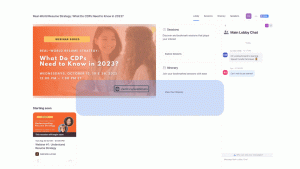
Access to the lobby will be deactivated a month after the webinars series is done.[/vc_toggle][vc_toggle title=”A new certificate of participation procedure”]Within 24 hours following the live webinar, participants who attended the webinar live will receive a certificate of attendance. Certificate of attendance will be sent from certs@gutenbergcerts.com. Make sure to add this address to your contact list so it won’t fall under your junk folder.[/vc_toggle][vc_toggle title=”A new way to access materials and recordings”]Materials and recordings will also be shared in the lobby within 24 hours of the final webinar of the series. Please note that access to the lobby and recordings will only be available for one month.[/vc_toggle][/vc_column_inner][/vc_row_inner][spacing desktop_height=”25″ mobile_height=”20″ smobile_height=”20″][vc_row_inner][vc_column_inner offset=”vc_hidden-lg vc_hidden-md vc_hidden-sm vc_hidden-xs”]
[spacing desktop_height=”25″][vc_column_text]
A new registration process using your Zoom profile
You’ll be prompted to sign in using your zoom account. When registering, you must log in with the zoom account you’ll use on the day of the webinar. Access to the webinar and confirmation details will only go to the e-mail you’re using at this stage. If needed, you can easily create a new Zoom account for free.
Once you register, check your zoom account e-mail for confirmation and mark the webinar(s) in your calendar using the attached calendar item. You’ll be prompted to add each session in the webinar series to your calendar. We recommend you turn on reminders so you don’t miss the webinars! Note: you can simply drag the calendar item to your Outlook agenda or Gmail agenda and edit the preferred time to be reminded of.
Note: Confirmation and reminder emails will be sent from Zoom using the following email address: noreply-zoomevents@zoom.us make sure you add this email address to your contact list, so it won’t go to your junk mail folder.[/vc_column_text][spacing desktop_height=”25″][vc_column_text]
A new group registration procedure
Previously, one person could register several team members on the same registration page and pay the appropriate amount. From now on, each group’s member will need to register on their own. Please note that the group rate is only available when 5 people or more from the same organization register for the same webinar series.[/vc_column_text][spacing desktop_height=”25″ mobile_height=”20″ smobile_height=”20″][vc_column_text]
A new way to receive and set up your reminders so you don’t miss the events
Once you register, check your zoom account e-mail for confirmation and mark the webinar(s) in your calendar using the attached calendar item. You’ll be prompted to add each session in the webinar series to your calendar. We recommend you turn on reminders so you don’t miss the webinars! Note: you can simply drag the calendar item to your Outlook agenda or Gmail agenda and edit the preferred time to be reminded of.[/vc_column_text][spacing desktop_height=”25″ mobile_height=”20″ smobile_height=”20″][vc_column_text]
A new way to join the live session
If you see this error message, switch to the zoom account you used to register for the webinar(s) instead and try again.
Once you arrive at the Zoom event page, navigate to the upcoming session. If you arrive before the starting date and time of the session, you will see a countdown indicating to you when the session will start. When the session is in progress, an “in progress” bar should be illuminated. Select the “Join” button.
You may experience this waiting screen before you’re prompted to join. Please wait for the webinar to start if that is the case. Once the event has started, you will enter the waiting room, pending the presenters and organizer moving you to the main room.[/vc_column_text][spacing desktop_height=”25″ mobile_height=”20″ smobile_height=”20″][vc_column_text]
More options to participate
To make the webinars more engaging, you will have the possibility to turn on/off your webcam. Please note that your mic will be turned off upon your entry and the options for activating it will be limited based on presenter preferences and plans.[/vc_column_text][spacing desktop_height=”25″ mobile_height=”20″ smobile_height=”20″][vc_column_text]
Access to a lobby before and after the sessions with the ability to discuss concepts with peers
The Zoom Events lobby is a great place to:
- review information about the webinar series
- see & interact with who’s registered
- Ask questions or discuss concepts before or after the session
- Access materials for the webinar before/after each session
Access to the lobby will be deactivated a month after the webinars series is done.[/vc_column_text][spacing desktop_height=”25″ mobile_height=”20″ smobile_height=”20″][vc_column_text]
A new certificate of participation procedure
Within 24 hours following the live webinar, participants who attended the webinar live will receive a certificate of attendance. Certificate of attendance will be sent from certs=gutenbergcerts.com@mg.gutenbergcerts.com. Make sure to add this address to your contact list so it won’t fall under your junk folder.[/vc_column_text][spacing desktop_height=”25″ mobile_height=”20″ smobile_height=”20″][vc_column_text]
A new way to access materials and recordings
Materials and recordings will also be shared in the lobby within 24 hours of the final webinar of the series. Please note that access to the lobby and recordings will only be available for one month.[/vc_column_text][/vc_column_inner][/vc_row_inner][/vc_column][/vc_row][vc_row][vc_column][spacing desktop_height=”40″][/vc_column][/vc_row]