
[vc_row][vc_column][spacing desktop_height=”20″][/vc_column][/vc_row][vc_row][vc_column][vc_column_text css=””]Nos webinaires en direct sont hébergés sur le Portail d’apprentissage du CERIC. Consultez notre FAQ pour plus d’information.
[/vc_column_text][vc_column_text css=””]Les webinaires du CERIC sont hébergés sur Zoom. Qu’est-ce que cela signifie pour vous?[/vc_column_text][advlist content_background_color=”#ffffff” content_bottom_margin=”0″ icon_type=”typicons” icon_color=”#ff683a” icon_font_size=”40px” content_left_padding=”40″ icon_typicons=”typcn typcn-input-checked”]Une interface plus conviviale[/advlist][advlist content_background_color=”#ffffff” content_bottom_margin=”0″ icon_type=”typicons” icon_color=”#ff683a” icon_font_size=”40px” content_left_padding=”40″ icon_typicons=”typcn typcn-input-checked”]La possibilité d’interagir avec les présentateurs et les participants grâce à des options d’interaction avancée[/advlist][vc_column_text]Vous trouverez ci-dessous des informations complémentaires ainsi que les questions courantes que nous vous recommandons de consulter :[/vc_column_text][/vc_column][/vc_row][vc_row][vc_column][vc_toggle title=”Comment compléter votre inscription” css=””]L’inscription à nos webinaires comporte deux étapes. La première étape consiste à vous inscrire sur Eventbrite. Une fois votre inscription confirmée, vous recevrez un courriel de confirmation d’Eventbrite. Après cela, vous recevrez un courriel de Zoom contenant votre lien Zoom. Nous vous demandons de ne pas partager votre lien Zoom car un seul appareil connecté est autorisé par inscription.[/vc_toggle][vc_toggle title=”Procédure d’inscription de groupe” css=””]Le tarif de groupe est disponible lorsqu’un minimum de 5 personnes et plus d’une même organisation s’inscrivent à la même série de webinaires. La personne qui achète le billet de groupe doit fournir les informations de chaque individu.
IMPORTANT : Veuillez noter que pour les inscriptions de groupe, chaque personne recevra deux courriels. Veuillez informer vos membres du personnel d’ignorer le courriel envoyé par Eventbrite et de ne considérer QUE le(s) courriel(s) reçu de Zoom contenant leur(s) lien(s) vers leur(s) session(s).[/vc_toggle][vc_toggle title=”Comment configurer vos rappels pour ne rien manquer des événements” css=””]Une fois votre inscription confirmée, vérifiez le courriel de confirmation où vous aurez l’option de marquer le ou les webinaires dans votre calendrier à l’aide de cet élément de calendrier afin d’être sûr de ne pas les manquer! Remarque : vous pouvez simplement faire glisser l’élément de calendrier vers votre agenda Outlook ou votre agenda Gmail et modifier l’heure de rappel préférée.
Remarque : les courriels de rappels seront envoyés par Zoom depuis l’adresse courriel suivante : noreply-zoomevents@zoom.us. Assurez-vous d’ajouter cette adresse courriel à votre liste de contacts, afin qu’elle n’aille pas dans votre dossier de courriers indésirables[/vc_toggle][vc_toggle title=”Procédure d’attestation de participation en DIRECT” css=””]Veuillez noter que des certificats de participation individuels sont UNIQUEMENT fournis aux participants inscrits qui assistent au webinaire EN DIRECT. Si vous regardez le webinaire via son enregistrement, vous ne recevrez pas d’attestation de participation. Dans les 24 heures suivant le webinaire en direct, les participants ayant assisté au webinaire en direct recevront un certificat de participation. Le certificat de participation sera envoyé par certs@gutenbergcerts.com. Assurez-vous d’ajouter cette adresse à votre liste de contacts afin qu’elle ne tombe pas dans votre dossier de courriers indésirables.[/vc_toggle][vc_toggle title=”Comment accéder aux documents et aux enregistrements” css=””]Le matériel et les enregistrements vous seront envoyés dans les 48 heures suivant chaque webinaire. Veuillez noter que le processus peut prendre plus de temps si des sous-titres sont ajoutés aux enregistrements.[/vc_toggle][spacing desktop_height=”10″ mobile_height=”5″ smobile_height=”2″][/vc_column][/vc_row][vc_row][vc_column][vc_column_text]
Vous rencontrez des problèmes techniques, ou vous avez des préoccupations? Vérifiez les éléments suivants :
[/vc_column_text][/vc_column][/vc_row][vc_row][vc_column][vc_toggle title=”J’ai inscrit mes collègues à un tarif groupe, mais il leur ait demandé de se connecter à EventBrite afin de réclamer leur ticket” css=””]Veuillez noter que pour les inscriptions de groupe, chaque personne recevra deux courriels. Veuillez informer vos membres du personnel d’ignorer le courriel envoyé par Eventbrite et de ne considérer QUE le courriel reçu de Zoom.[/vc_toggle][vc_toggle title=”Je n’ai pas reçu mon attestation de présence” css=””]Veuillez noter que des certificats de participation individuels sont UNIQUEMENT fournis aux participants inscrits qui assistent au webinaire EN DIRECT. Si vous regardez le webinaire via son enregistrement, vous ne recevrez pas d’attestation de participation. Dans les 24 heures suivant le webinaire en direct, les participants ayant assisté au webinaire en direct recevront un certificat de participation. Le certificat de participation sera envoyé par certs@gutenbergcerts.com. Assurez-vous d’ajouter cette adresse à votre liste de contacts afin qu’elle ne tombe pas dans votre dossier de courriers indésirables.
Si vous ne trouvez toujours pas votre certificat de participation après avoir vérifié votre dossier de courriers indésirables, veuillez nous envoyer un courriel à apprentissage@ceric.ca avec le nom et la date du webinaire auquel vous avez assisté.[/vc_toggle][/vc_column][/vc_row][vc_row disable_element=”yes”][vc_column][vc_column_text]
1. What’s new with CERIC webinars?
In response to popular request, CERIC PAID webinars are now moved to the Zoom Event platform! What does this change mean for you?
- A user-friendly interface
- The ability to better interact with presenters and attendees through new engagement options
- Access to a conference lobby before and after the sessions with the ability to discuss content with peers
[/vc_column_text][spacing desktop_height=”40″][/vc_column][/vc_row][vc_row disable_element=”yes”][vc_column][vc_column_text]
2. What are the changes you can expect in both the registration process and live participation?
As with any changes, you may find your registration or participation process a little different at first. Be sure to register in advance so we can best assist you with this upgraded experience! What changes can you expect?[/vc_column_text][spacing desktop_height=”20″][/vc_column][/vc_row][vc_row disable_element=”yes”][vc_column][accordions]
Les webinaires gratuits du CERIC sont disponibles pour tous les pays (tant que l’accès au pays n’est pas restreint par Zoom Events). Malheureusement, nos webinaires payants sont limités aux pays/régions auxquels Zoom Events est proposé. Si vous rencontrez des difficultés pour vous inscrire, veuillez vérifier si votre pays figure sur cette liste.
Once you register, check your zoom account email for confirmation and mark the webinar(s) in your calendar using this calendar item. You’ll be prompted to add each session in the webinar series to your calendar. We recommend you turn on reminders so you don’t miss the webinars! Note: you can simply drag the calendar item to your Outlook agenda or Gmail agenda and edit the preferred reminder time.
Note: Confirmation and reminder emails will be sent from Zoom using the following email address: noreply-zoomevents@zoom.us. Make sure you add this email address to your contact list, so it won’t go to your junk mail folder.
Previously, one person could register several team members on their behalf using the same registration page and make one single payment. It is not possible anymore. From now on, each group member will need to register and pay independently. Important: Each group member must register with their email address associated with their Zoom account, or each would have to create a new account if they don’t have one. You must get invoiced if your organization wants to make one single payment. Contact us at webinars@ceric.ca, and we’ll inform you of the invoice procedure. Payment Policy: Please note that payment must be received within 30 days to complete your registration.
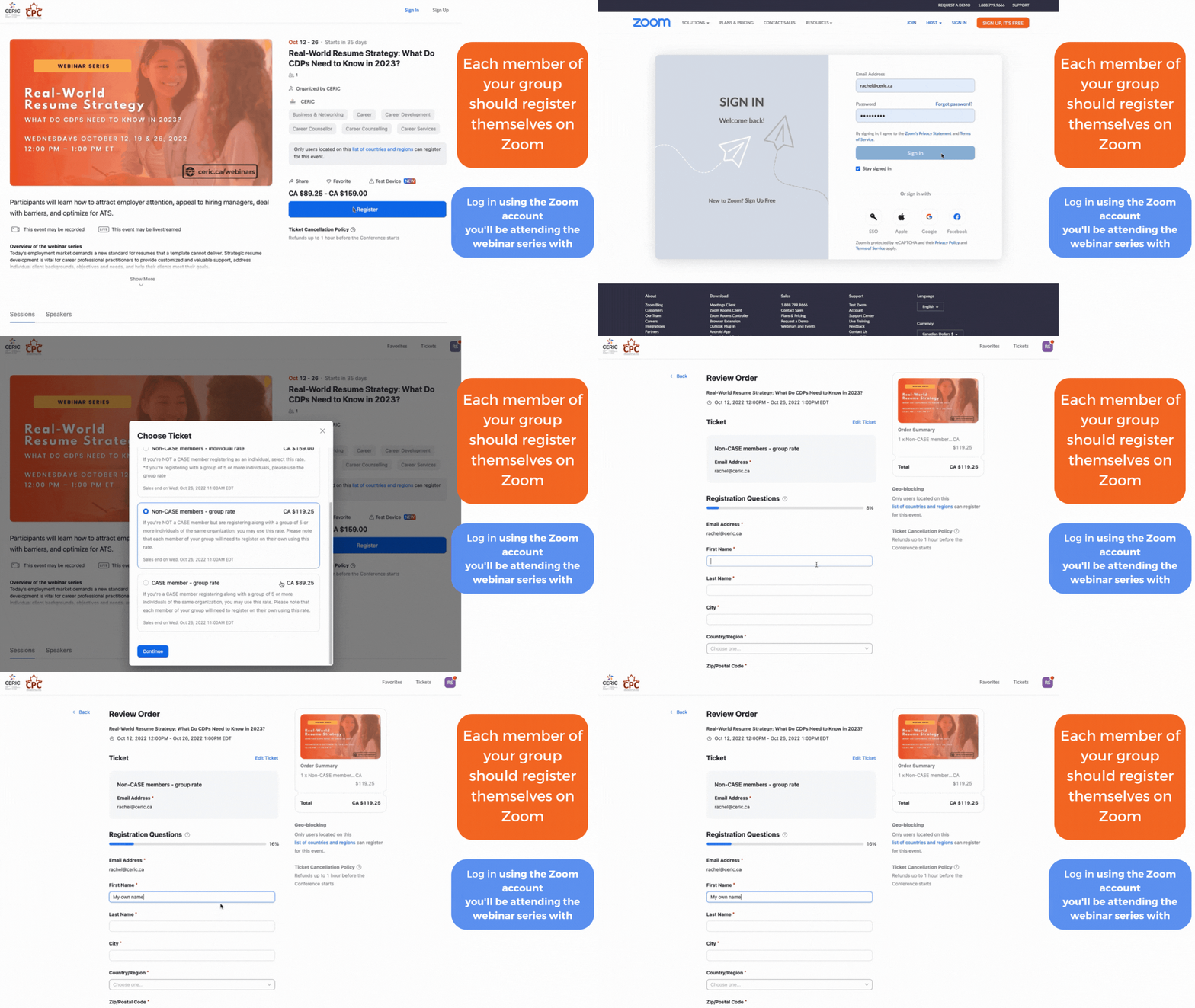
If you see this error message, switch to the Zoom account you used to register for the webinar(s) instead and try again.
Once you arrive at the Zoom event page, navigate to the upcoming session. If you arrive before the starting date and time of the session, you will see a countdown indicating to you when the session will start. When the session is in progress, an “in progress” bar should be illuminated. Select the “Join” button.
You may experience this waiting screen before you’re prompted to join. Please wait for the webinar to start if that is the case. Once the event has started, you will enter the waiting room, pending the presenters and organizer moving you to the main room.
- Review information about the webinar series
- See & interact with who’s registered
- Ask questions or discuss concepts before or after the session
- Access materials for the webinar before/after each session
Access to the lobby will be deactivated a month after the webinars series is done.
Retourner à la page des webinaires
[/vc_column_text][/vc_column][vc_column offset=”vc_hidden-lg vc_hidden-md vc_hidden-sm vc_hidden-xs”][vc_row_inner][vc_column_inner][vc_toggle title=”A new registration process using your Zoom profile”]You’ll be prompted to sign in using your zoom account. When registering, you must log in with the zoom account you’ll use on the day of the webinar. Access to the webinar and confirmation details will only go to the e-mail you’re using at this stage. If needed, you can easily create a new Zoom account for free.
Once you register, check your zoom account e-mail for confirmation and mark the webinar(s) in your calendar using the attached calendar item. You’ll be prompted to add each session in the webinar series to your calendar. We recommend you turn on reminders so you don’t miss the webinars! Note: you can simply drag the calendar item to your Outlook agenda or Gmail agenda and edit the preferred time to be reminded of.
Note: Confirmation and reminder emails will be sent from Zoom using the following email address: noreply-zoomevents@zoom.us make sure you add this email address to your contact list, so it won’t go to your junk mail folder.[/vc_toggle][vc_toggle title=”A new group registration procedure”]Previously, one person could register several team members on the same registration page and pay the appropriate amount. From now on, each group’s member will need to register on their own. Please note that the group rate is only available when 5 people or more from the same organization register for the same webinar series.[/vc_toggle][vc_toggle title=”A new way to receive and set up your reminders so you don’t miss the events!”]Once you register, check your zoom account e-mail for confirmation and mark the webinar(s) in your calendar using the attached calendar item. You’ll be prompted to add each session in the webinar series to your calendar. We recommend you turn on reminders so you don’t miss the webinars! Note: you can simply drag the calendar item to your Outlook agenda or Gmail agenda and edit the preferred time to be reminded of.[/vc_toggle][vc_toggle title=”More options to participate”]To make the webinars more engaging, you will have the possibility to turn on/off your webcam. Please note that your mic will be turned off upon your entry and the options for activating it will be limited based on presenter preferences and plans.[/vc_toggle][vc_toggle title=”A new way to join the live session”]Open the webinar session you’ve saved in your calendar and open the link to the Zoom event, OR you can access the event through the “view ticket” button in the e-mail associated with your zoom account.
If you see this error message, switch to the zoom account you used to register for the webinar(s) instead and try again.
Once you arrive at the Zoom event page, navigate to the upcoming session. If you arrive before the starting date and time of the session, you will see a countdown indicating to you when the session will start. When the session is in progress, an “in progress” bar should be illuminated. Select the “Join” button.
You may experience this waiting screen before you’re prompted to join. Please wait for the webinar to start if that is the case. Once the event has started, you will enter the waiting room, pending the presenters and organizer moving you to the main room.[/vc_toggle][vc_toggle title=”Access to a lobby before and after the sessions with the ability to discuss concepts with peers”]The Zoom Events lobby is a great place to:
- review information about the webinar series
- see & interact with who’s registered
- Ask questions or discuss concepts before or after the session
- Access materials for the webinar before/after each session
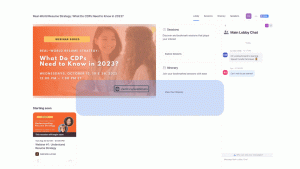
Access to the lobby will be deactivated a month after the webinars series is done.[/vc_toggle][vc_toggle title=”A new certificate of participation procedure”]Within 24 hours following the live webinar, participants who attended the webinar live will receive a certificate of attendance. Certificate of attendance will be sent from certs@gutenbergcerts.com. Make sure to add this address to your contact list so it won’t fall under your junk folder.[/vc_toggle][vc_toggle title=”A new way to access materials and recordings”]Materials and recordings will also be shared in the lobby within 24 hours of the final webinar of the series. Please note that access to the lobby and recordings will only be available for one month.[/vc_toggle][/vc_column_inner][/vc_row_inner][spacing desktop_height=”25″ mobile_height=”20″ smobile_height=”20″][vc_row_inner][vc_column_inner offset=”vc_hidden-lg vc_hidden-md vc_hidden-sm vc_hidden-xs”]
[spacing desktop_height=”25″][vc_column_text]
A new registration process using your Zoom profile
You’ll be prompted to sign in using your zoom account. When registering, you must log in with the zoom account you’ll use on the day of the webinar. Access to the webinar and confirmation details will only go to the e-mail you’re using at this stage. If needed, you can easily create a new Zoom account for free.
Once you register, check your zoom account e-mail for confirmation and mark the webinar(s) in your calendar using the attached calendar item. You’ll be prompted to add each session in the webinar series to your calendar. We recommend you turn on reminders so you don’t miss the webinars! Note: you can simply drag the calendar item to your Outlook agenda or Gmail agenda and edit the preferred time to be reminded of.
Note: Confirmation and reminder emails will be sent from Zoom using the following email address: noreply-zoomevents@zoom.us make sure you add this email address to your contact list, so it won’t go to your junk mail folder.[/vc_column_text][spacing desktop_height=”25″][vc_column_text]
A new group registration procedure
Previously, one person could register several team members on the same registration page and pay the appropriate amount. From now on, each group’s member will need to register on their own. Please note that the group rate is only available when 5 people or more from the same organization register for the same webinar series.[/vc_column_text][spacing desktop_height=”25″ mobile_height=”20″ smobile_height=”20″][vc_column_text]
A new way to receive and set up your reminders so you don’t miss the events
Once you register, check your zoom account e-mail for confirmation and mark the webinar(s) in your calendar using the attached calendar item. You’ll be prompted to add each session in the webinar series to your calendar. We recommend you turn on reminders so you don’t miss the webinars! Note: you can simply drag the calendar item to your Outlook agenda or Gmail agenda and edit the preferred time to be reminded of.[/vc_column_text][spacing desktop_height=”25″ mobile_height=”20″ smobile_height=”20″][vc_column_text]
A new way to join the live session
If you see this error message, switch to the zoom account you used to register for the webinar(s) instead and try again.
Once you arrive at the Zoom event page, navigate to the upcoming session. If you arrive before the starting date and time of the session, you will see a countdown indicating to you when the session will start. When the session is in progress, an “in progress” bar should be illuminated. Select the “Join” button.
You may experience this waiting screen before you’re prompted to join. Please wait for the webinar to start if that is the case. Once the event has started, you will enter the waiting room, pending the presenters and organizer moving you to the main room.[/vc_column_text][spacing desktop_height=”25″ mobile_height=”20″ smobile_height=”20″][vc_column_text]
More options to participate
To make the webinars more engaging, you will have the possibility to turn on/off your webcam. Please note that your mic will be turned off upon your entry and the options for activating it will be limited based on presenter preferences and plans.[/vc_column_text][spacing desktop_height=”25″ mobile_height=”20″ smobile_height=”20″][vc_column_text]
Access to a lobby before and after the sessions with the ability to discuss concepts with peers
The Zoom Events lobby is a great place to:
- review information about the webinar series
- see & interact with who’s registered
- Ask questions or discuss concepts before or after the session
- Access materials for the webinar before/after each session
Access to the lobby will be deactivated a month after the webinars series is done.[/vc_column_text][spacing desktop_height=”25″ mobile_height=”20″ smobile_height=”20″][vc_column_text]
A new certificate of participation procedure
Within 24 hours following the live webinar, participants who attended the webinar live will receive a certificate of attendance. Certificate of attendance will be sent from certs=gutenbergcerts.com@mg.gutenbergcerts.com. Make sure to add this address to your contact list so it won’t fall under your junk folder.[/vc_column_text][spacing desktop_height=”25″ mobile_height=”20″ smobile_height=”20″][vc_column_text]
A new way to access materials and recordings
Materials and recordings will also be shared in the lobby within 24 hours of the final webinar of the series. Please note that access to the lobby and recordings will only be available for one month.[/vc_column_text][/vc_column_inner][/vc_row_inner][/vc_column][/vc_row][vc_row][vc_column][spacing desktop_height=”40″][/vc_column][/vc_row]